A Morse code sound translator makes translation between text and Morse code, which most often follows International Morse code, audible rather than merely a curiosity. However, its use continues to evolve with new applications. For example, some people who are blind have adopted Morse code using their fingertips to navigate smartphones.
This browser-based tool is designed for two-way translation: you can type text, hear it as Morse code tones, and save your results. Or you can input Morse code (in a specific written format), hear it, and then save the resulting English text.
The bidirectional editing flows through the Text and Morse panels of the app. The two panels work in unison; if you edit one, the other will change accordingly. So you can start typing in either panel, or simply paste the appropriate data.
Start by pasting in the text you’d like to hear as Morse code tones. Check the output in the Morse panel, and then press Play.
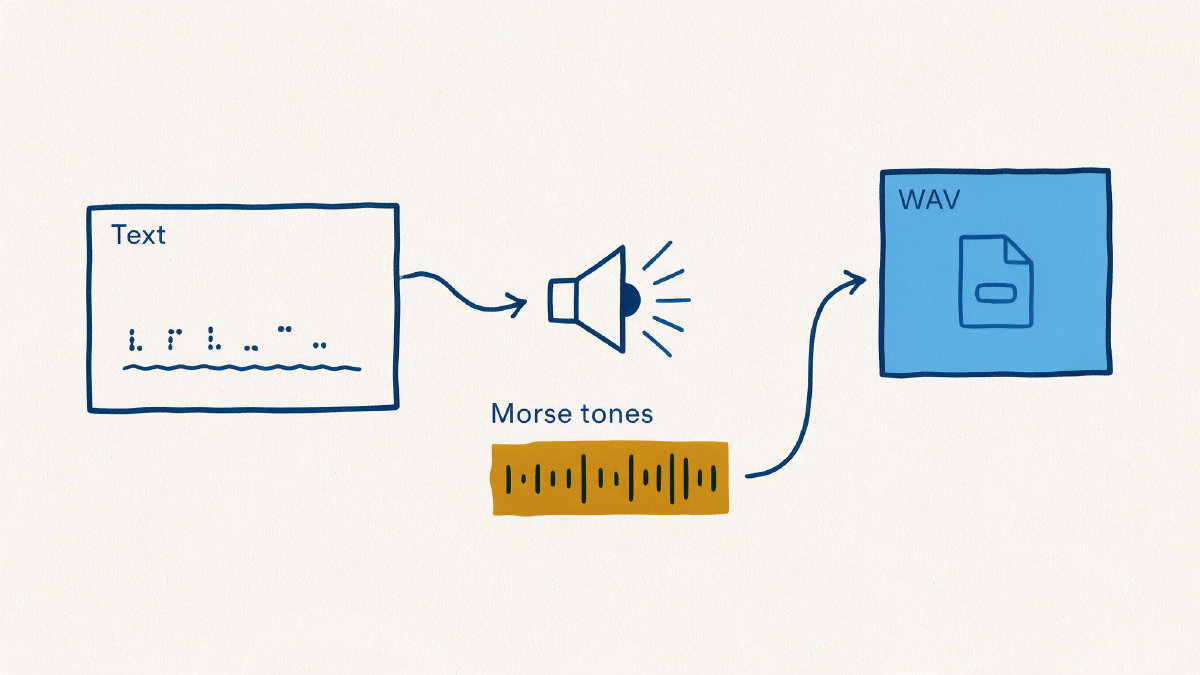
Once you’ve heard your message, you can stop playback at any time, control how fast the tones play (WPM, pitch, and volume), repeat them, and more. When you’re done, you can export the tones in WAV format (or just copy the Morse code to another service). You can also download the translated text as a .txt file.
All of these functions are available without a sign-up. If you do choose to save your translations, they’ll be stored locally on your device and never uploaded to a server.
Let’s take a look at the Morse Code Sound Translator from start to finish.
Hear English Text as Morse Tones
Pasted English text appears in the Text panel, while its corresponding Morse code appears in the Morse panel. By default, the translator uses a 20 WPM tone with a 600 Hz tone at 50% volume.
In addition to translating typed text to Morse code, you can control playback before exporting. Press Play to hear the result.
Press Stop to halt playback. Use Speed to adjust how quickly Morse plays. You can even set the Pitch and Volume. There’s also a Repeat option, which can help you verify that the Morse tones correspond to what you expect.
There’s also a Flash option, which flashes the page every time a character is played. That could be helpful for those who are blind or visually impaired. Vibrate can be toggled on as well.
Available playback settings include:
Learn (12 WPM): Slower than standard speed
Standard (20 WPM): Default setting
Fast (30 WPM): Faster than normal
You can also tweak the 20 WPM setting manually.
The audio tone is a single frequency: 600 Hz. The volume level is 50%, but you can adjust it up or down manually.
There are presets available that define all of these parameters:
Learn
Standard
Fast
If you don’t like the tone, you can customize it yourself.
Acceptable Written Morse Format
International Morse code defines specific timing so that Morse characters will reverse cleanly back into English text. Specifically, the rules specify that one space separates character codes, with a slash separating words. The actual character has 1 unit inside the character. A dot represents one unit, while a dash represents three units. Three units of space separates characters, and seven units separate words.
When writing Morse in English, the above rules apply. But here’s where things get a bit complicated. While the original rule is to put a slash between words, it’s also common to use spaces. In our case, the Morse Code Sound Translator accepts both.
Local WAV File Generation
When you generate a signal via the Morse Code Sound Translator, it’s generated locally. That means that there’s no chance of the translator changing your signal. The resulting WAV file matches the current playback timing.
Other options allow you to download the translated text as a TXT file or copy the text or Morse directly. You can share the Morse code, too. And there’s always the Clear button to clear everything out.
Verify What You See With What You Hear
As we mentioned earlier, there are multiple ways to ensure that the visible Morse and the audible Morse tones match the intended message. One way is to keep both panels visible. That allows you to compare words across slash boundaries, for example.
If something seems off, then it might be because of unsupported text or unknown Morse code. In either case, the translator should notify you.
There’s also a character count, word count, and various other details about the Morse symbols that will appear. This gives you an estimated duration of the entire message, too. Be sure to listen before copying or downloading your work!
Where Is The Tool Boundary?
One of the biggest limitations of the Morse Code Sound Translator is that the translator is not designed to decode microphone or uploaded-audio signals into English text. Instead, the translator handles only typed Morse-to-text.
That’s important! Decoding a microphone signal or an uploaded audio file is a different job than translating written dots and dashes. If you want to convert Morse code to text using a microphone or an uploaded-audio file, you’ll need a separate Morse decoder tool for that.
Similarly, the Morse Code Sound Translator does not provide the ability to upload or record audio. Instead, the sound is created locally in your browser and exported as a WAV file when you choose to save it.